Azuria Launcher

A home for your Minecraft instances.

v0.2.117 for Windows x64

Development preview. Windows x64 · Minecraft Java Edition. Vanilla and Fabric launching supported. Current status

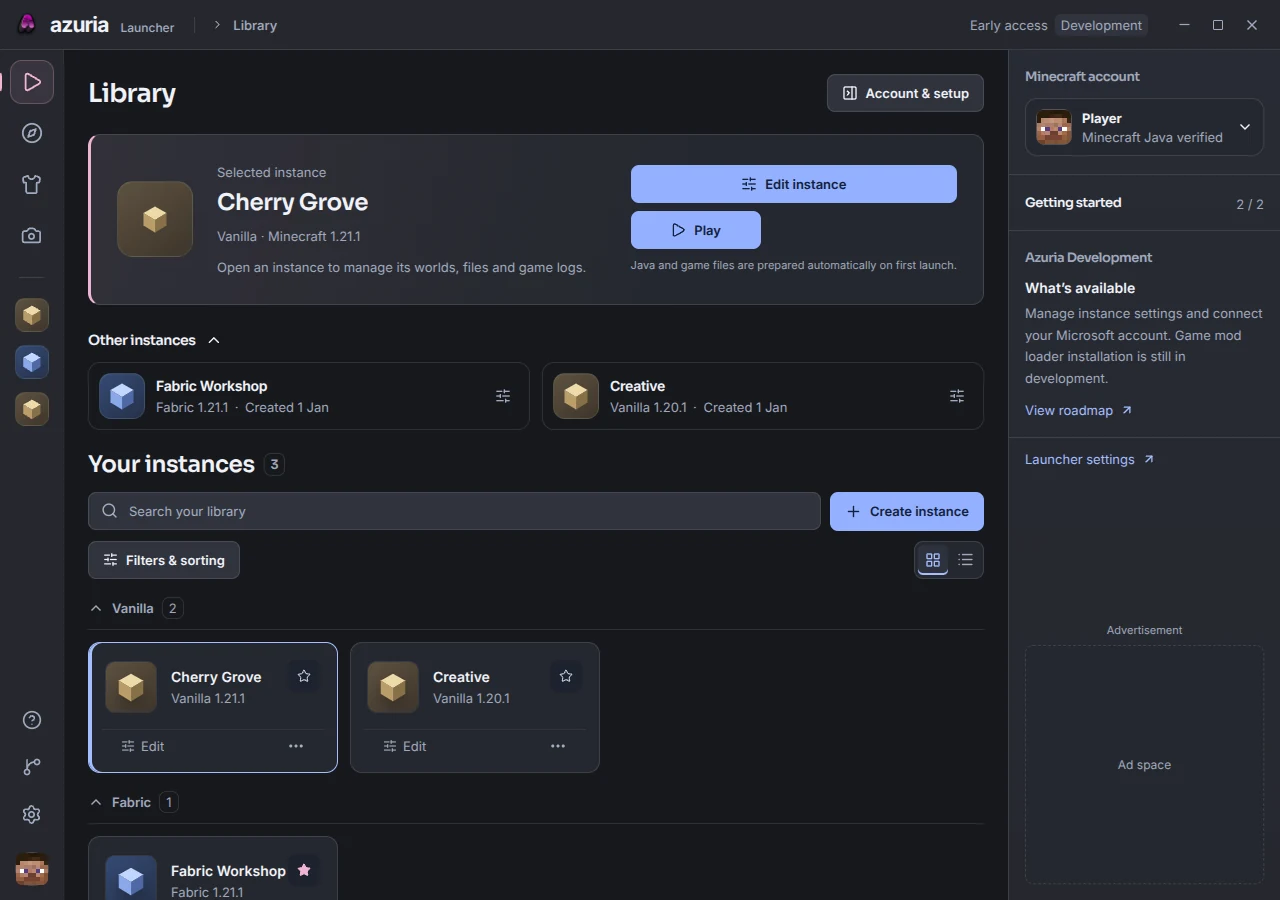
Azuria’s current library with sample Vanilla and Fabric instances, Play controls and a player skin head.
Current launcher interface with sample instances and a demo account.

Organise your Minecraft instances.

Keep version and loader settings separate. Search, group and favourite your setups, and give each one its own icon.

A setup for each version

Choose Minecraft and loader versions without mixing up your instance settings.

Find the right instance

Search your library, group related setups and keep favourites close.

Recognise it at a glance

Choose an icon and colour, or add your own artwork.

Play prepares game files and Java automatically for Vanilla and Fabric. Forge, NeoForge and Quilt launching remain in development.

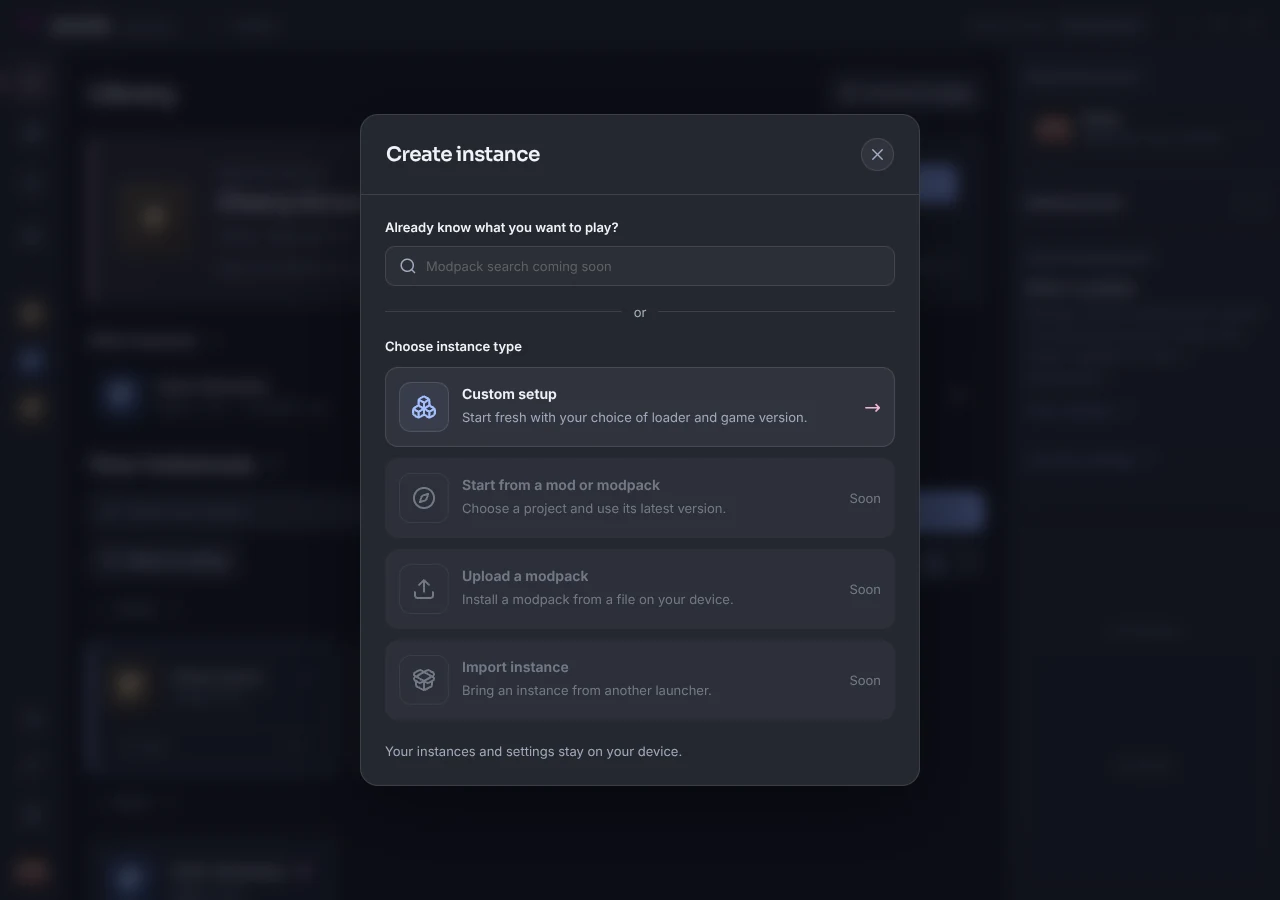
See instance creation
Azuria’s Create instance screen with the Custom setup option.
Create an instance, then choose its version and loader settings.

More of your launcher, in one place.

Manage how you play, how you look and what each instance needs.

Skins & capes

A wardrobe of your own.

Save skins locally, turn the character preview to inspect them, choose Classic or Slim arms and select a cape you own. Apply your choice to your Minecraft account when you’re ready.

Official Steve texture shown with a demo account. Cape choices depend on your account.
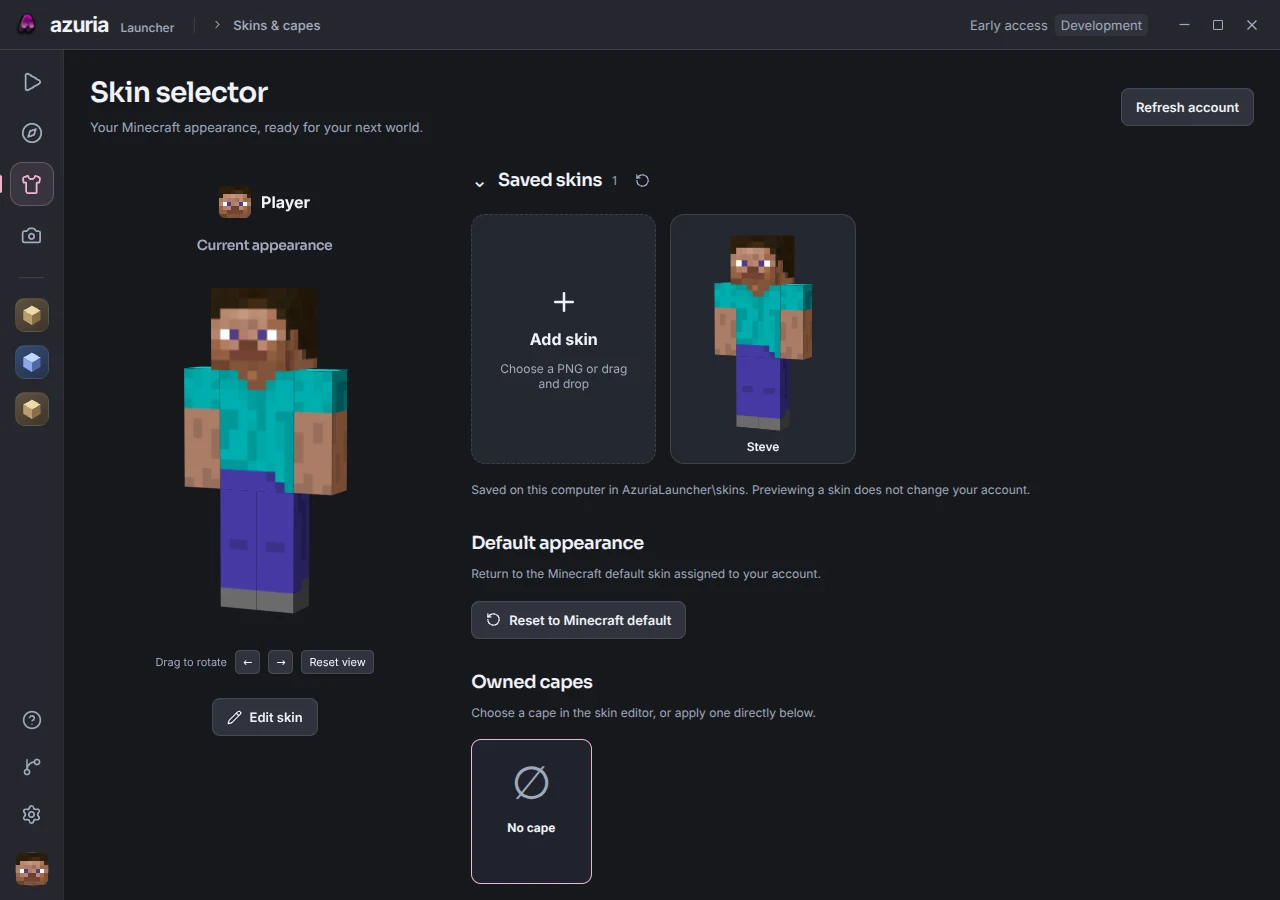
Current Azuria skin selector with a rotatable Steve preview and a saved skin card.
Saved skins and an interactive character preview.
Launcher settings

Make it feel right.

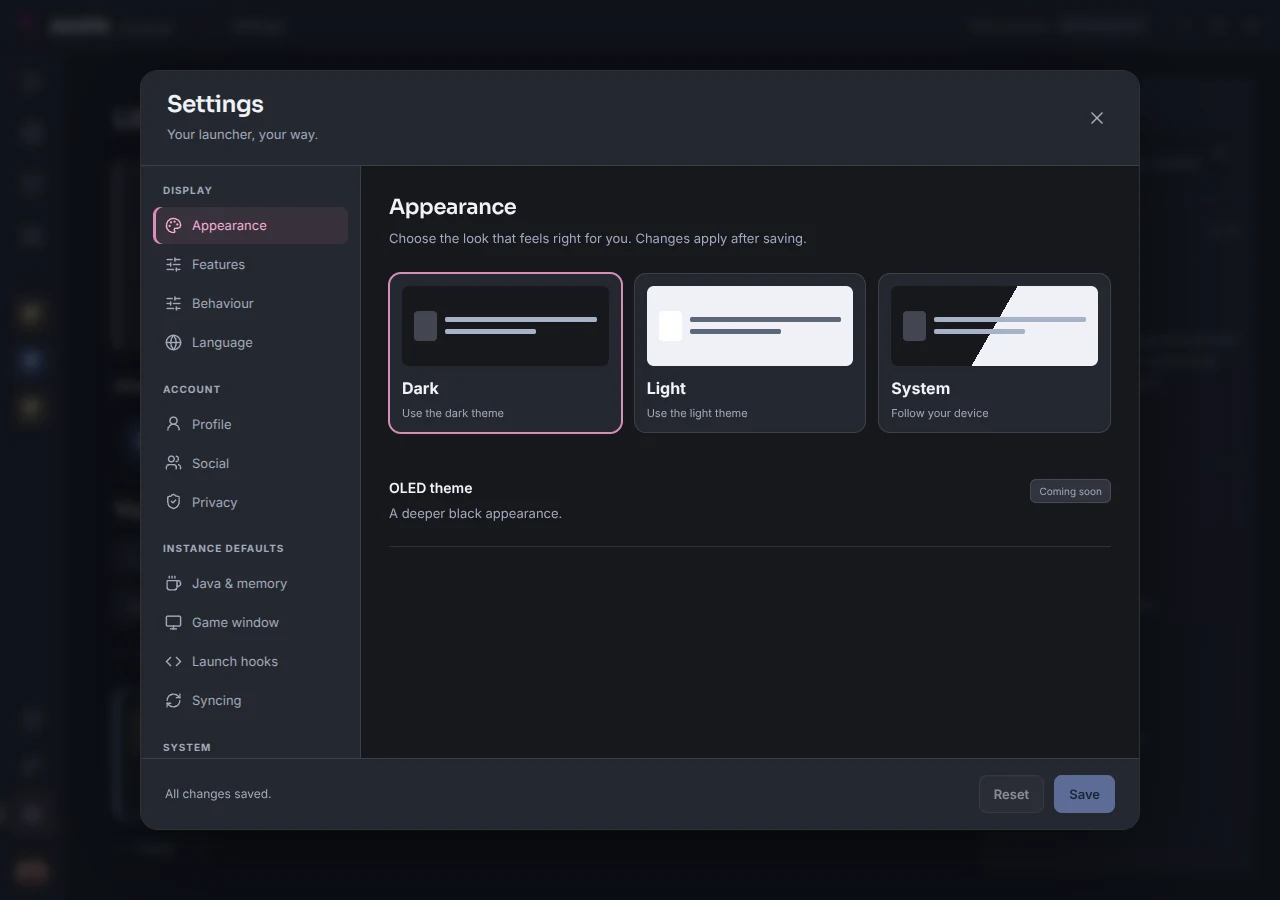
Appearance, account controls, Java, memory and window defaults sit in a centred settings popup. Save when you’re happy, or Reset to return to your last saved values.

Features still in development are marked in the app.

Azuria’s centred settings popup with category navigation, theme cards and fixed Save and Reset buttons.
One settings popup with changes kept until you save.
Your instances

Everything for one world.

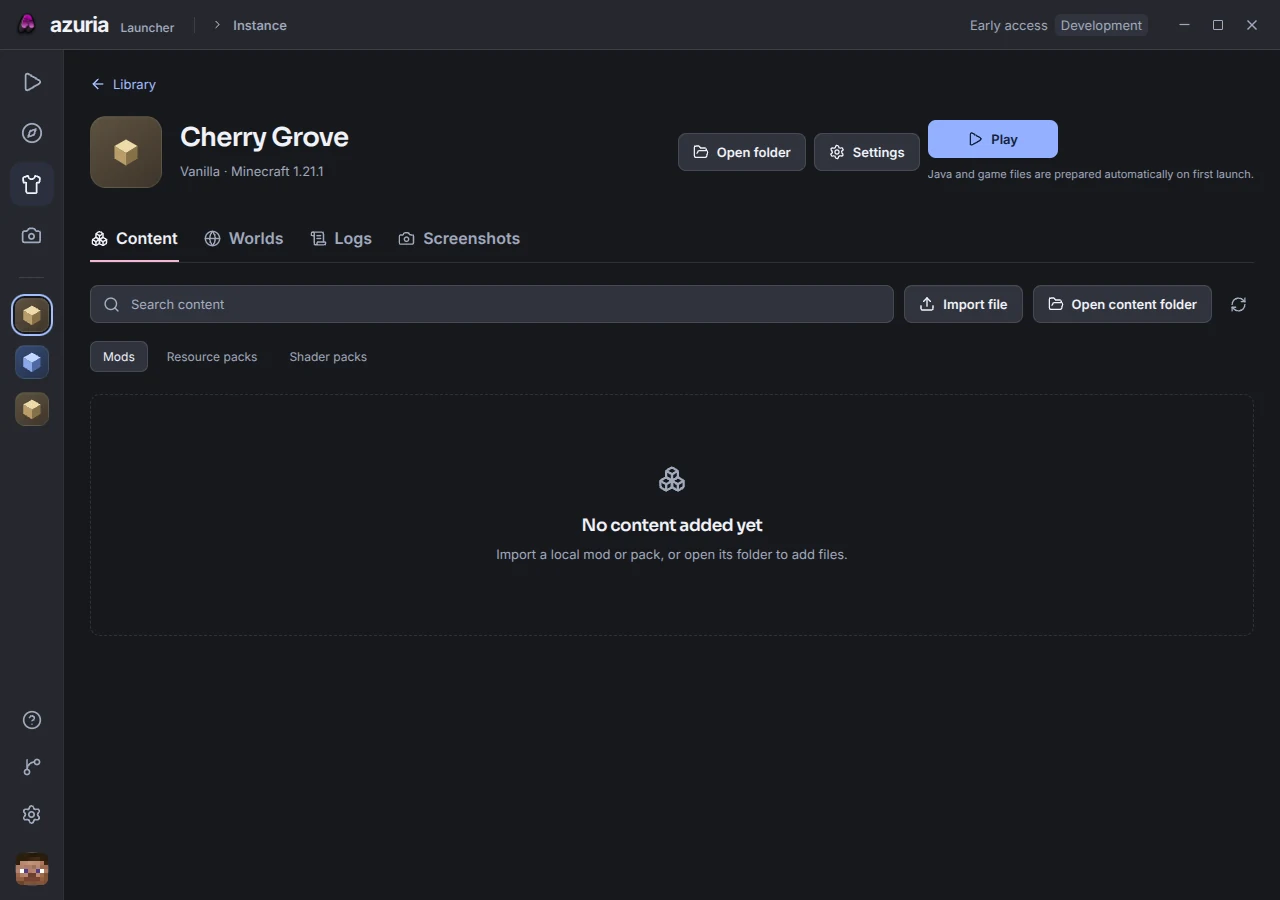
Open an instance for its content, worlds, screenshots and live logs. Use per-instance overrides for Java, memory and window preferences without changing your launcher defaults.

Play becomes Stop during preparation and while Minecraft runs. Screenshots can be previewed, exported or opened in their folder.

Azuria’s current instance page with Play, content navigation, logs, screenshots and settings controls.
Instance detail view with sample library content.

Choose your appearance.

Dark, light or your system setting. The same controls with Azuria’s pink and blue details.

The same sample library in both themes. This control switches the launcher preview; the website keeps its dark appearance.

Azuria’s dark library with sample instance configurations.
Dark appearance, populated library

Latest release

What changed, straight from the published notes.

Full changelog
v0.2.117Latest release

What’s new

Added Windows Fabric launching using the selected Minecraft and pinned Fabric loader version. Quilt, Forge and NeoForge remain coming soon.

Read release notes
v0.2.114

Earlier release

Added Windows Fabric launching using the selected Minecraft and pinned Fabric loader version. Quilt, Forge and NeoForge remain coming soon.

Read release notes
v0.2.111

Earlier release

Replaced the settings page with a centred, category-based popup that keeps your current screen behind it.

Read release notes

Already using Azuria? Updates are checked automatically at startup.

Before you download

Platform support, updates and what works today.

Can I play Minecraft through Azuria yet?

Yes. Current Windows builds prepare and launch Vanilla and Fabric instances using a verified Minecraft Java account. Other loaders and live modpack installation are still in development.

Which platforms are supported?

Current builds support Windows x64. macOS, Linux and ARM64 builds are not available.

How do updates work?

Azuria checks for signed updates at startup and downloads them automatically. A restart countdown installs the update; choose Later to postpone. Updates wait while Minecraft is running.